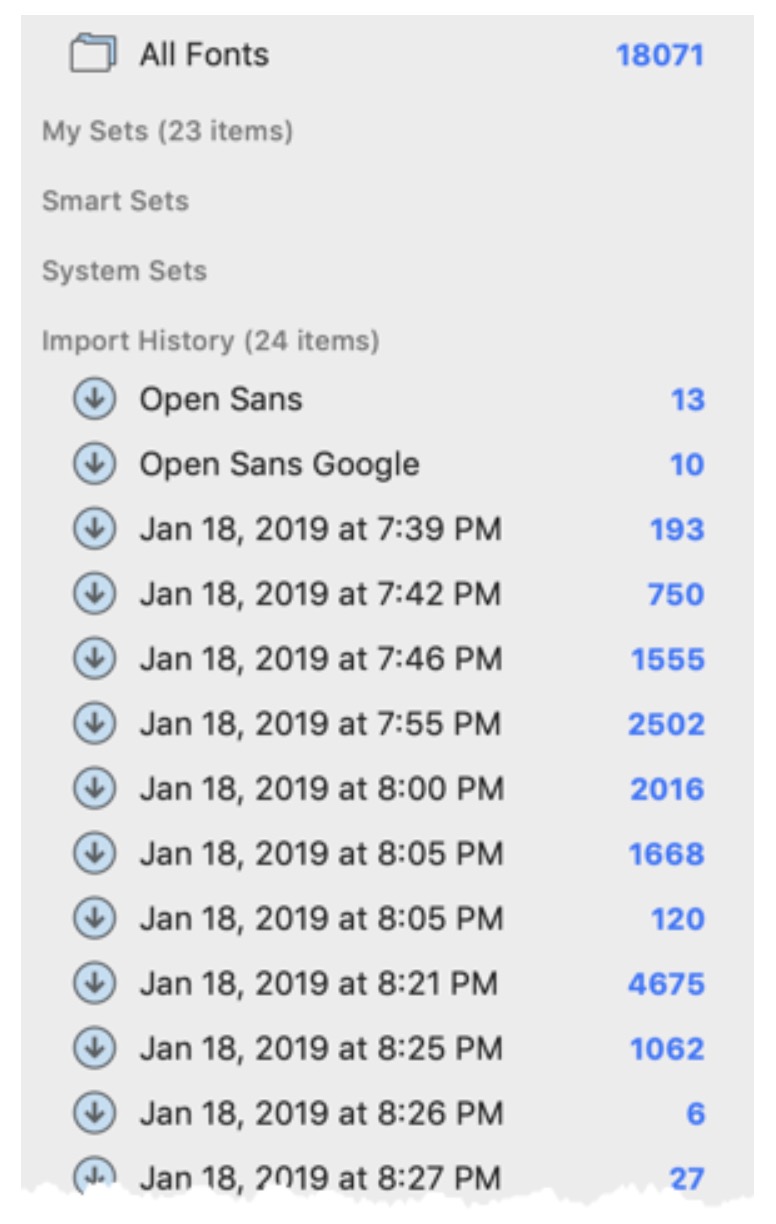
Sets are logical groupings of your fonts that you can use to organize your fonts based on customer, project, font style, foundry, or anything else that helps your workflow. Sets are handy because you can activate, deactivate or share all the fonts in a set with a single click or command.
Important Tips About FontAgent Sets
- FontAgent® automatically creates Import History sets for you as you import new fonts.
- You can create and delete sets without removing the fonts they contain from your FontAgent database.
- To add and remove fonts from sets, simply drag the fonts into and out of the sets.
- You can create nested sets, or subsets, adding additional hierarchy to your font collection.
- You can also create Smart Sets, which automatically include fonts based on criteria you specify.
- You can reverse an import request by deleting the associated Import History set.
Filter Sets
To filter the sets displayed in the Sets Sidebar, use the Search field that appears at the upper-right of the top pane.

Enter a keyword into the Search field. As you enter characters, FontAgent automatically searches your sets for the characters you have entered. As you type, the List or Table View appearing below the Search field displays the sets that match your string.
When FontAgent finds a subset that matches the characters entered, the subset is displayed in the parent set. You can examine the contents of the parent set by clicking the disclosure triangle to the left of the set.
Create a New Empty Set
You can create sets at any time to group your fonts in meaningful ways. If you create lots of sets, FontAgent scrolls the list of sets that appear in the left sidebar. To create a new set, follow these steps:
- Click the gear icon at the bottom of the Sets Sidebar and select New Set from the pop-up menu.
- A dialog sheet appears and prompts you to name the new set. Enter the name and click Save.
Using Nested, Hierarchical Subsets
FontAgent lets you define subsets as children of top-level sets. Here are some ideas for using subsets to simplify your Sets Sidebar:
- Alphabetic sets with family subsets
- Design client sets with project subsets
- Print customer sets with job number subsets
- Foundry sets with family subsets
- Classification sets with family subsets
- Classification sets with alphabetic subsets
Once you have created your parent and child sets, you can use disclosure triangles on the parent sets to hide the child sets as you wish.
Create a New Subset (Nested Set)
You can create subsets (nested sets) to organize your fonts into subcategories, such as organizing fonts for different projects for a client. To create a nested set, follow these steps:
- Select a set from the Sets Sidebar.
- Click the gear icon at the bottom of the Sets Sidebar and select New Subset from the pop-up menu.
You can also drag an existing set onto another set to make the selected set a subset of the target set.
Create a Set Containing Selected Fonts
To create a new set containing a group of fonts you have selected, follow these steps:
- Use Shift-Click or Command-Click to select the fonts you want in the new set.
- From the Tools menu, choose New Set From Selection.
- Name the set and click Save.
Add Fonts to Sets
To add fonts to an existing set, drag the fonts onto the set’s name in the Sets Sidebar in the left column.
Remove Fonts from Sets
To remove fonts from an existing set, you can either:
- Select the fonts you wish to remove, Control-Click or Right-Click the selected fonts and select Remove From Set from the contextual menu.
- Select the fonts you wish to remove, then press the Command-Delete key combination.
Rename Sets
To change the name of a set, you can either:
- Double-click the set’s name, rename the set, and press the Return key.
- Control-click the set’s name, select Rename from the pop-up menu, type its new name, and press the Return key.
Delete Sets
You can delete FontAgent sets at any time. To do so, select a set or group of sets and click the Delete icon in the Toolbar or press the Delete key.
When you delete a set, you remove only the logical association of fonts, not the actual font files.
Using Import History Sets
When you import fonts into FontAgent, it automatically creates a timestamped set in your Import History so you can find your new fonts easily.