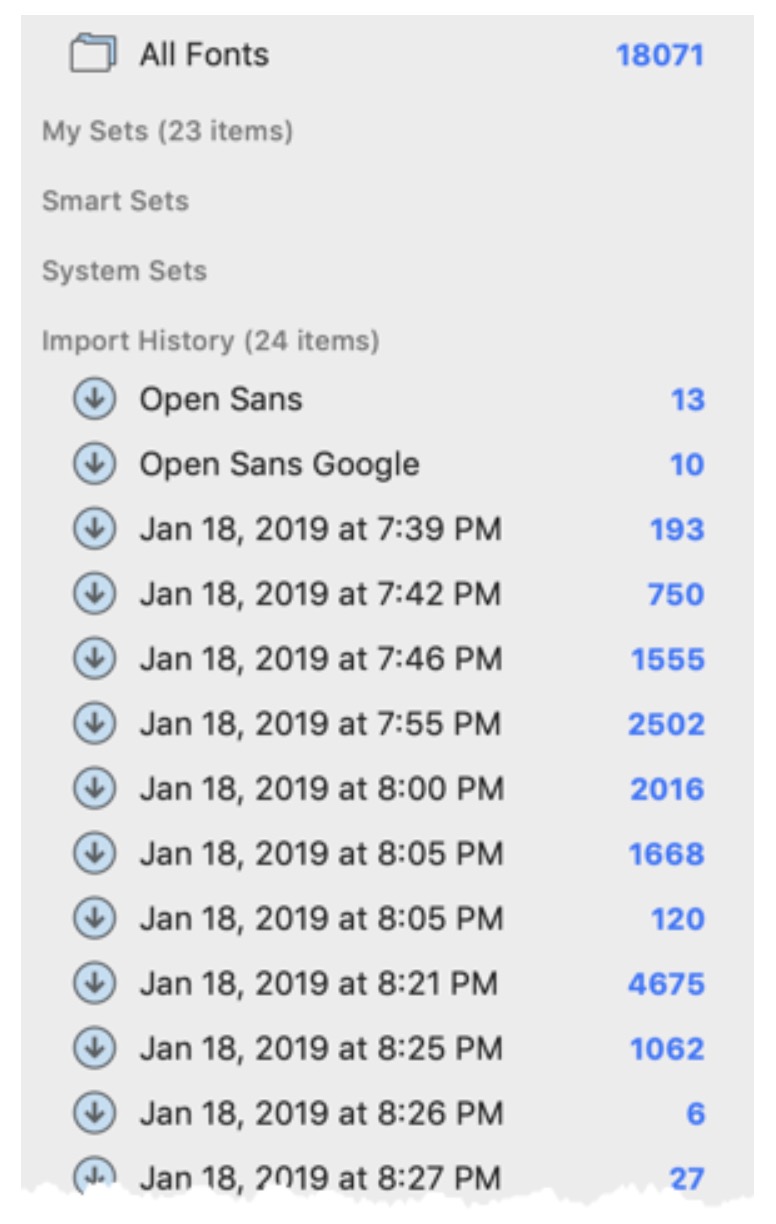
When you add fonts to your FontAgent® database, it verifies the integrity of the fonts and organizes them in a centralized database—so you can search, view, manage and select the fonts easily and reliably.
What Happens When You Import Fonts
When you import fonts, FontAgent automatically:
- Finds all fonts in the specified folders and subfolders
- Verifies that the fonts comply with industry font-file standards
- Identifies duplicate fonts and imports only unique ones
- Adds usable fonts to your database
- Enters font metadata into the FontAgent database
- Provides a results log of the import process
- Updates your import history
Ways to Import Fonts
You can import fonts into FontAgent in multiple ways.
- Drag and drop a font or a folder into the FontAgent application window.
- Click the + button in the top-left Toolbar.
- Select the File > Import Fonts menu command.
- Type Command+O.
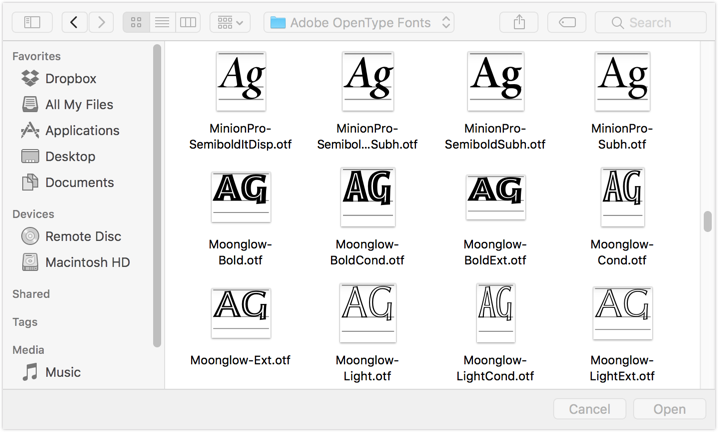
When you don’t use drag-and-drop to import fonts, FontAgent displays a dialog box so you can choose a file or folder to import.
Importing Fonts into a New Set
To import fonts into a new set, either:
- Use the File > Import Fonts menu command (Command+O) to select a folder or font files to import.
- Drag the fonts from your Mac desktop into an empty part of the Sets Sidebar.
Importing Adobe Fonts and Subscription Fonts
FontAgent automatically sees fonts activated by Adobe Fonts and other font subscription services that store their fonts in well-known locations in the Mac file system. So there is no need to import Adobe Fonts into FontAgent. FontAgent automatically enables you to use those fonts with the other fonts in your catalog.
Importing Fonts into an Existing Set
To import fonts into an existing FontAgent set, drag the fonts from your Mac desktop onto the set name in the Sets Sidebar.
Notes About PostScript Type 1 Fonts
When you import Mac PostScript Type 1 fonts, FontAgent:
- Identifies all unmatched PostScript and incomplete fonts and does not import them
- Removes point sizes over 12 or keeps the next smallest size to save system resources
- Renames each bitmapped font file (suitcase) to the font name used by macOS and FontAgent
- Splits up legacy suitcases into individual font files for precise control
- Note that you can use Windows TrueType fonts in macOS, but not Windows Type 1 fonts