Activating a font makes it available for use so it appears in Font menus in your applications. To limit your Font menus to a manageable length and to conserve system resources, you should activate just the fonts you plan to use. Don’t worry. FontAgent lets you preview and compare your fonts, regardless of their activation status.
FontAgent® lets you activate just the fonts you need, and helps you to simplify bloated font menus, save system resources and maintain system performance. To activate or deactivate a font, click its activation slider switch.
Activation Indicators
Wherever FontAgent displays a font or set, it also displays an activation status switch. Click the slider to toggle the font’s activation status.
 Activated
The font is activated and ready for use in applications. To deactivate it, click the slider.
 Deactivated
The font is deactivated and isn’t available for use in applications. To activate it, click the slider.
 System-Activated
The font is required to be active by the operating system and cannot be deactivated.
 Auto-Activated
The font was auto-activated and is available for use.
Some applications update their Font menus as they run, so newly activated fonts appear automatically after a short delay. Other apps load their list of available fonts only as they start up, so you must relaunch the apps for their Font menus to show newly activated fonts.
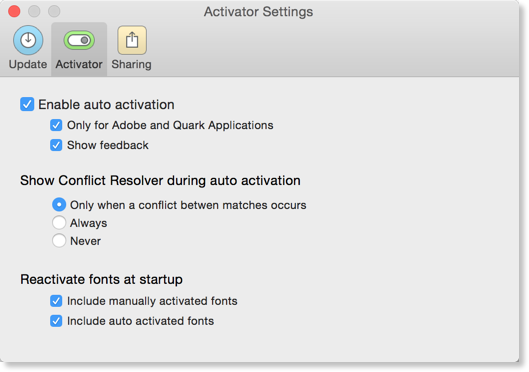
Activation Preferences
FontAgent provides a number of settings to help control its font activation functionality. To set these preferences, follow these steps:
- Click the Activator tab in the Preferences dialog.
- Select the Preferences command from the FontAgent menu.